How to Wake Up Without a Phone Alarm (Use Your Browser Instead)
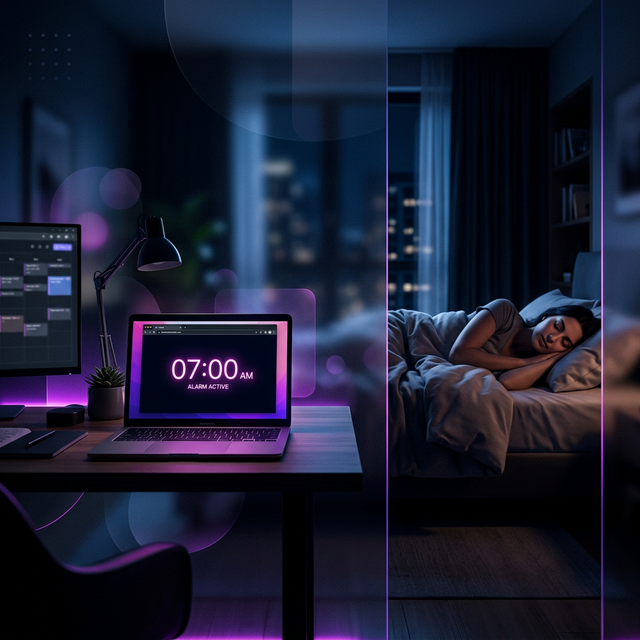
Putting your phone in another room before bed is one of the most consistently recommended sleep hygiene tips from researchers, therapists, and productivity coaches alike. The problem is obvious: if your phone is your alarm clock, you can't leave it in another room without risking sleeping through your morning.
So most people don't bother. The phone stays on the nightstand, face down — as if that helps — and the blue light, the late-night notifications, and the morning scroll are all waiting for you.
There is a straightforward fix, and it doesn't involve buying a separate alarm clock.
Why your phone alarm is worse than you think
The issue isn't just about blue light before bed (though that's real). It's about what your phone represents psychologically the moment you pick it up.
Sleep researchers describe something called "the triggering effect" — the way certain objects prompt habitual responses. When you reach for your phone first thing in the morning, your brain is already shifting from rest-mode to reactive-mode before you've had a single coherent thought. Within 30 seconds you might be reading a WhatsApp message, checking a notification, or seeing something stressful in your email.
That cortisol spike first thing in the morning affects your mood and focus for hours. And it starts the moment you touch the phone — before you've even gotten out of bed.
A browser alarm on a laptop across the room breaks that chain. When your alarm rings, you have to physically stand up and walk to it. By the time you get there, you're already more awake than you would be reaching for the phone next to your head.
The exact setup (step by step)
Here's the complete setup — it takes about two minutes.
Step 1: Open the alarm clock on your laptop. Go to onlinetimezone.com on your laptop browser and navigate to the Alarm Clock.
Step 2: Set your alarm. Enter your wake-up time, add a label if you want (like "Morning — 6:30 AM"), and click Add Alarm. The alarm is now active and will ring at that exact time, even if you switch tabs or minimize the window.
Step 3: Turn off WiFi if you want to be sure. Once the page is loaded, the alarm will work entirely offline. The alarm sounds are generated directly by your browser using the Web Audio API — no audio files are fetched from the internet. You can disable WiFi after setting the alarm and it will still ring on schedule.
Step 4: Put your laptop across the room. Place it on a desk, shelf, or dresser — anywhere that requires you to physically get out of bed to reach it. Plug it in if you can.
Step 5: Adjust your power settings. Make sure your laptop won't go to sleep overnight. On Windows, set "Sleep" to "Never" while plugged in. On Mac, go to System Settings > Battery > Options and enable "Prevent automatic sleeping."
That's it. Your phone stays in another room. Your alarm wakes you up. You get out of bed to dismiss it.
Ready to try the browser alarm?
Our free online alarm clock works completely offline once loaded — no app install, no account, no ads interrupting your morning. Set it once and leave it.
Set a Free Browser Alarm →What about the browser tab staying open?
The alarm runs as long as the browser tab is open. It does not need to be the active, visible tab — it can run quietly in the background while you have other tabs open. Modern browsers (Chrome, Firefox, Edge, Safari) all keep JavaScript timers running in background tabs.
The only thing that will stop it is:
- Closing the tab
- Closing the browser
- The laptop going to sleep (hence the power settings step above)
- A full system crash (extremely rare on a plugged-in laptop)
For particularly important alarms — like catching a flight — set a backup on a second device. But for everyday wake-ups, this setup is as reliable as a standalone alarm clock.
Why this beats buying a bedside clock
A dedicated bedside alarm clock seems like the obvious solution, but it has two problems. First, you're still reaching for something right next to your bed, which doesn't break the "immediate morning grab" habit. Second, it's another device to buy, charge, and maintain.
A browser alarm on a laptop you already own costs nothing, requires no charging routine, rings at precisely the correct time (it syncs to your system clock), and gives you the additional feature of being completely repositionable — put it in the kitchen, put it in the hallway, put it wherever is most effective for your morning routine.
| Alarm method | Gets out of bed | Phone-free bedroom | Costs money | Multiple alarms |
|---|---|---|---|---|
| Phone alarm (next to bed) | No | No | No | Yes |
| Phone alarm (other room) | Yes | Yes | No | Yes |
| Physical alarm clock | Sometimes | Yes | Yes (~₹500-2000) | Rarely |
| Browser alarm (laptop, other room) | Yes | Yes | No | Yes |
The snooze problem
One more thing worth addressing: if your alarm is across the room, snoozing becomes a conscious decision that requires getting up twice. Most people find that by the time they've walked across the room, they're awake enough to not want to go back to bed anyway.
If you do want a snooze option, the browser alarm has one built in. But the research on snoozing is fairly clear: snoozing fragments your sleep without giving you meaningful extra rest, and most people feel worse after a snoozed alarm than if they'd just gotten up when it first rang. The "across the room" method naturally discourages it.